

Documentation Index
Fetch the complete documentation index at: https://docs.idunplatform.com/llms.txt
Use this file to discover all available pages before exploring further.
This tutorial assumes the full Idun stack is running via Docker Compose. If you have not set it up yet, follow the quickstart first.
Log in
Open http://localhost:3000 in your browser.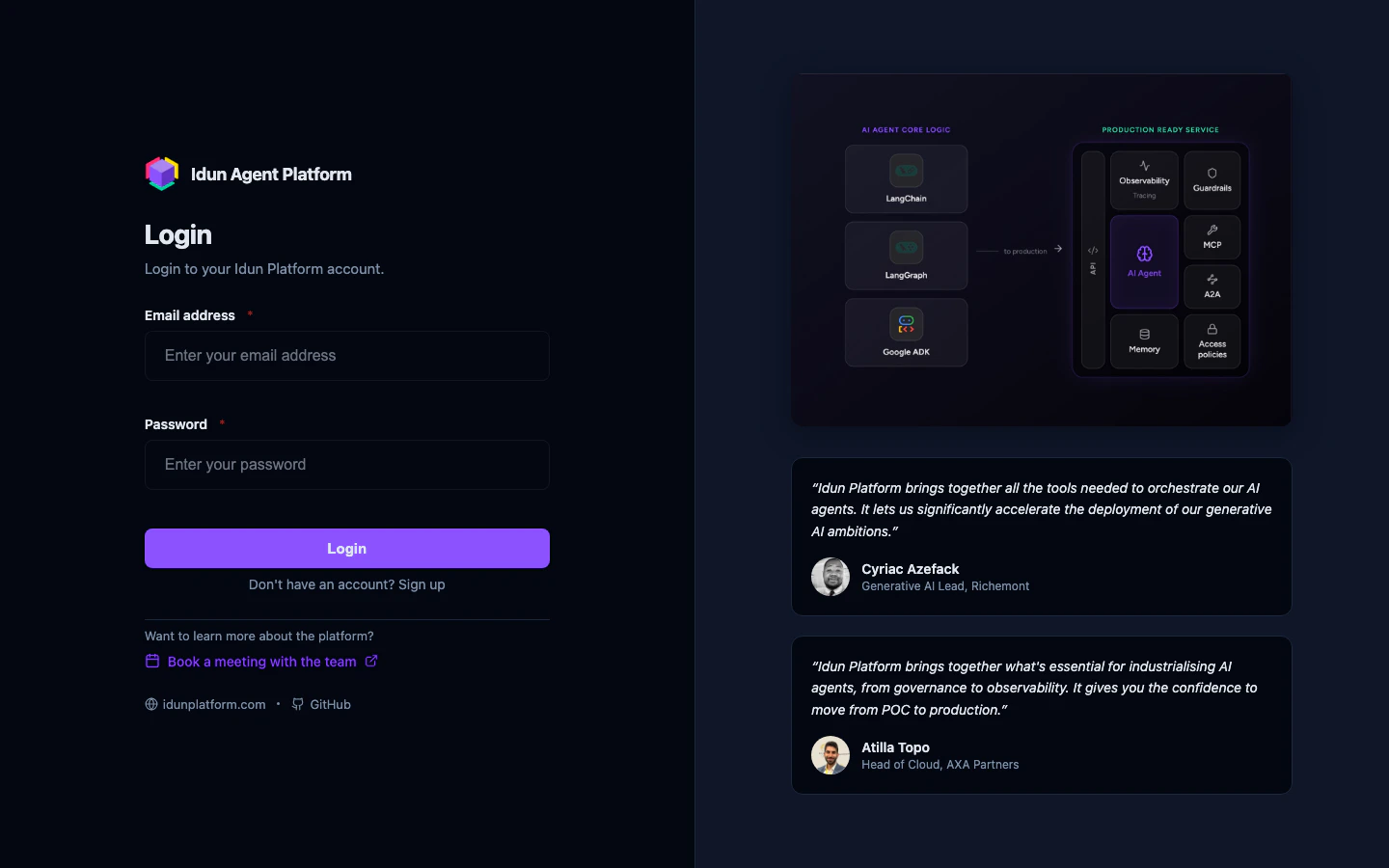
Explore the agent dashboard
After login, you land on the agent dashboard.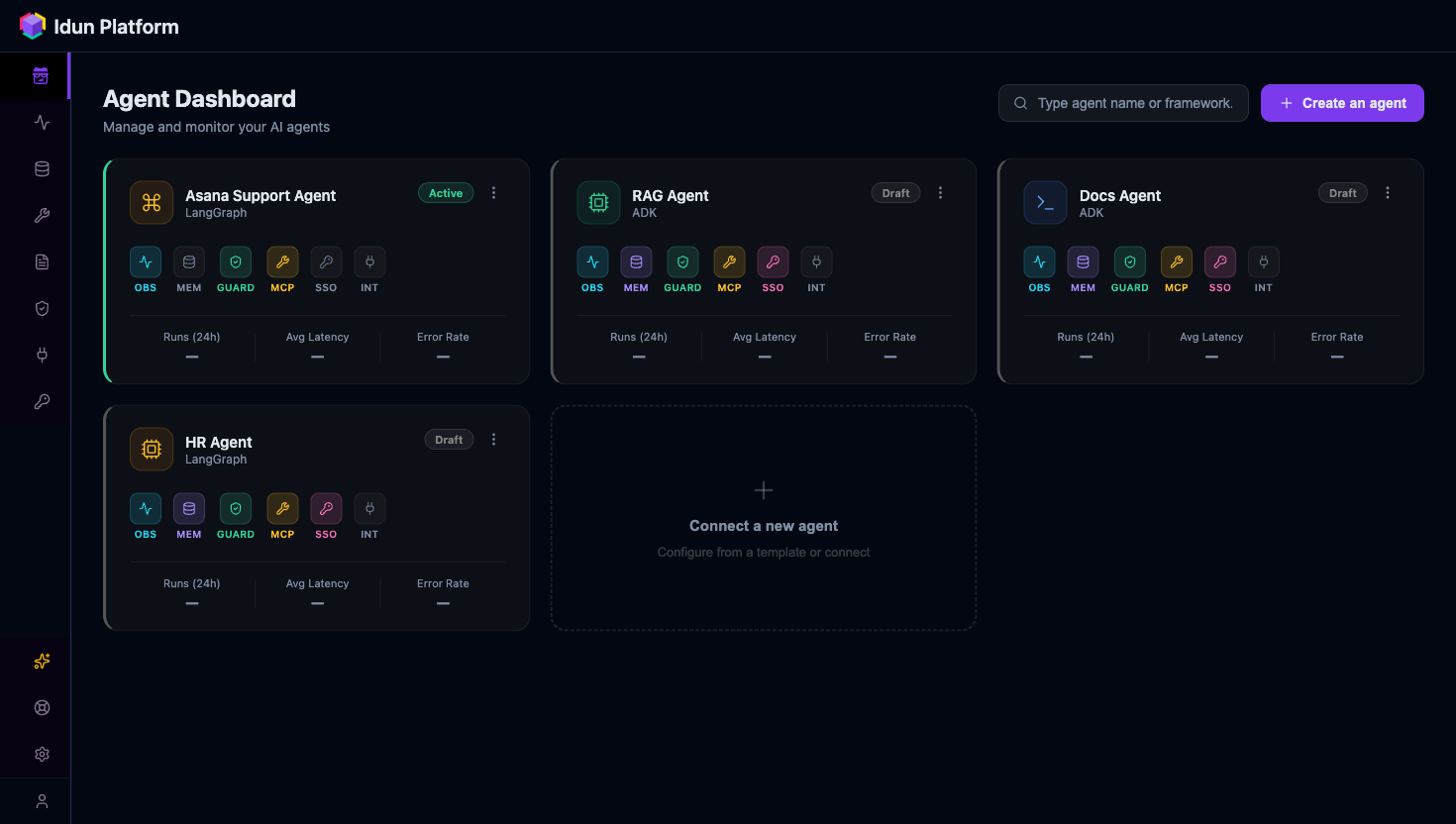
Create an agent
Click Create an agent to open the creation wizard. It has three steps.Step 1: Basics. Enter a name for your agent and select a framework. LangGraph and ADK each appear as a radio card.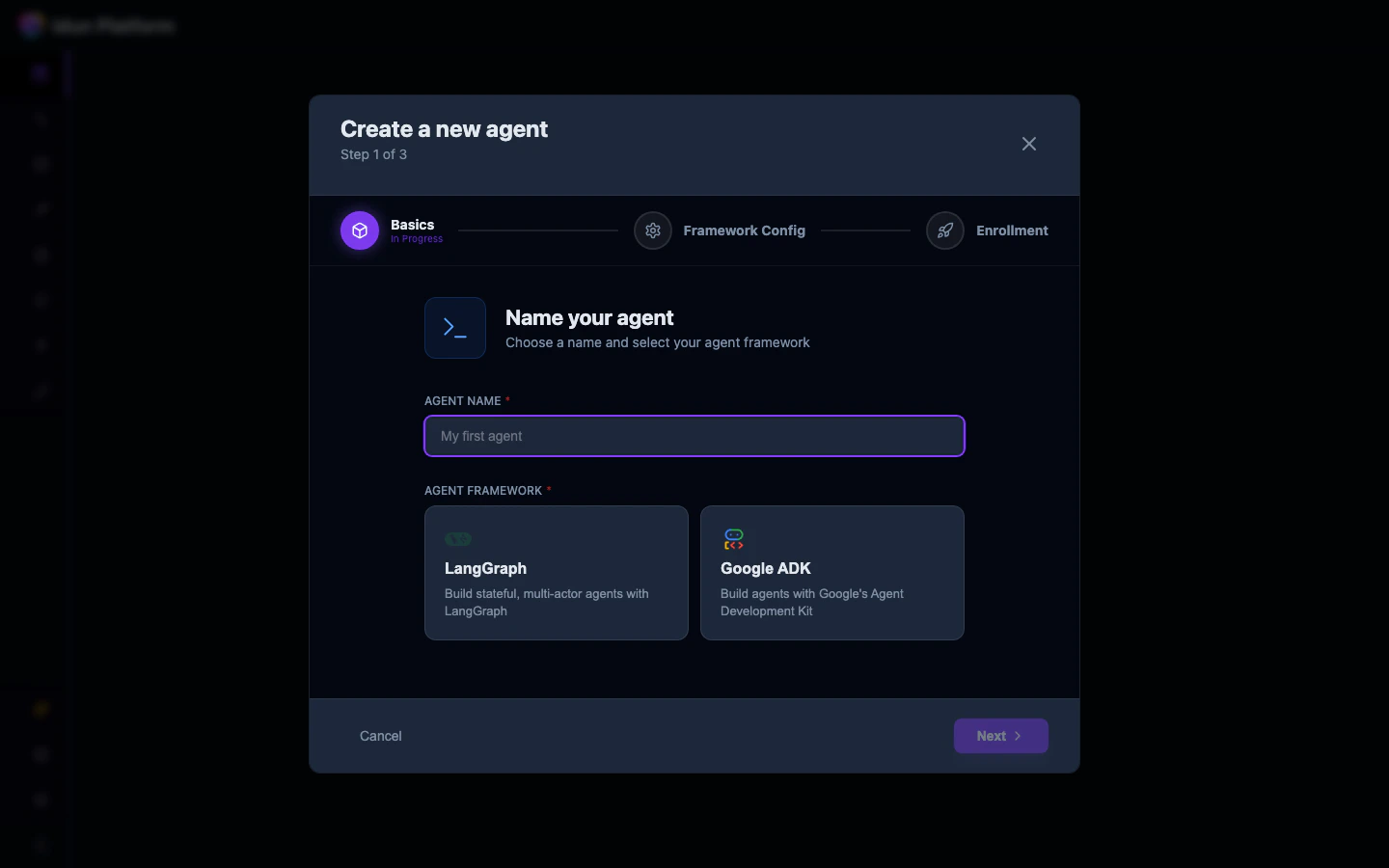
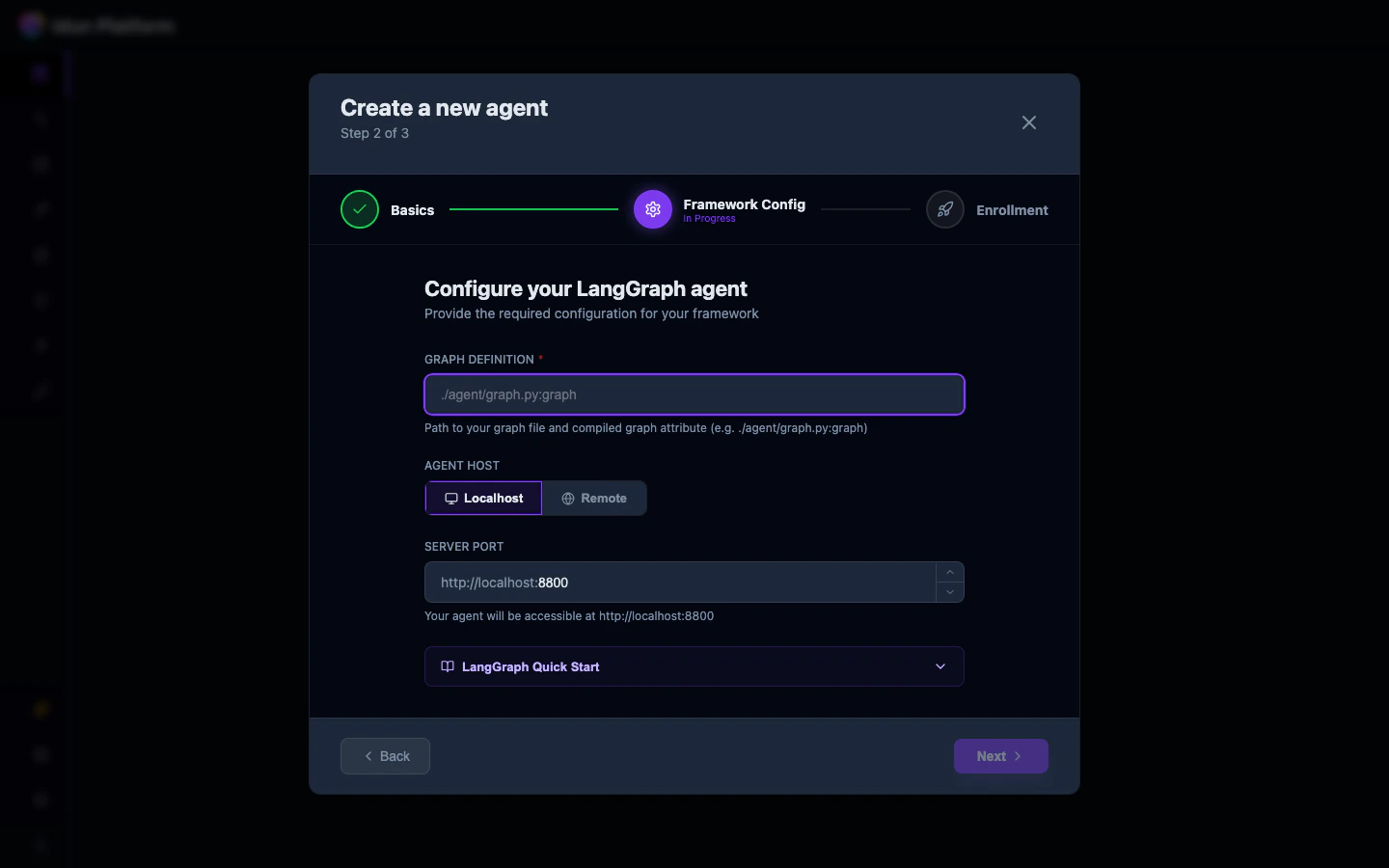
./agent/graph.py:graph), select the host type (Localhost or Remote), and set the port.Enroll the agent
Now you go back to your own codebase and connect the agent to the Manager.Install the engine SDK:Set the environment variables that tell the engine where to find the Manager and how to authenticate:The API key is available on the agent’s API Integration tab (covered in step 6). Copy it from there.When the agent starts, it calls the Manager, pulls its materialized config, and boots with every attached resource already wired in. No local config file needed.
The agent phones home to the Manager at startup. All configuration lives in the platform, so when you change a guardrail or add an observability provider in the UI, the agent picks up the new config on restart.
Test via the built-in chat
Go back to the agent detail page in the browser and click the Chat tab.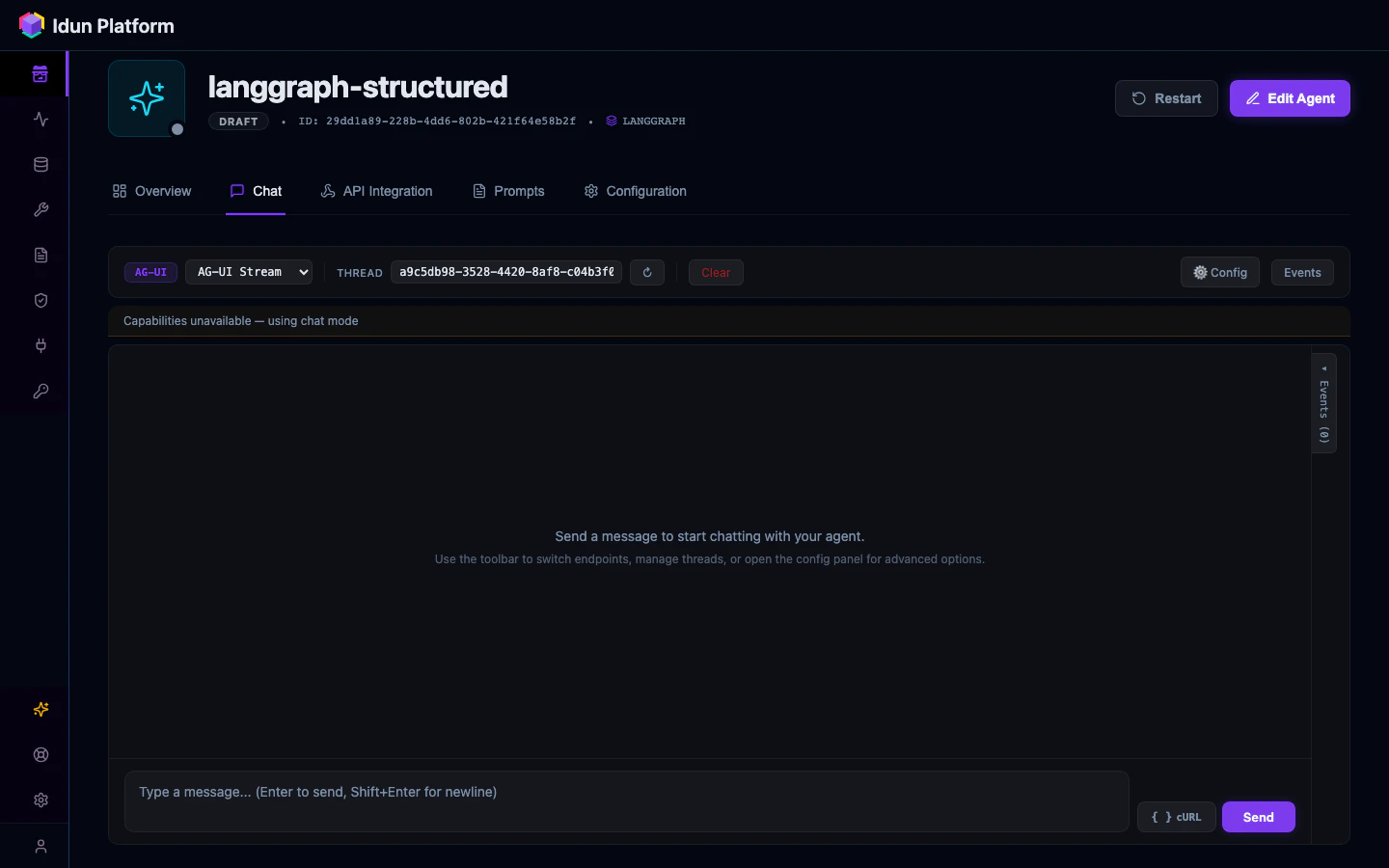
IDUN_MANAGER_HOST and IDUN_AGENT_API_KEY are set correctly.Check API integration
Click the API Integration tab on the agent detail page.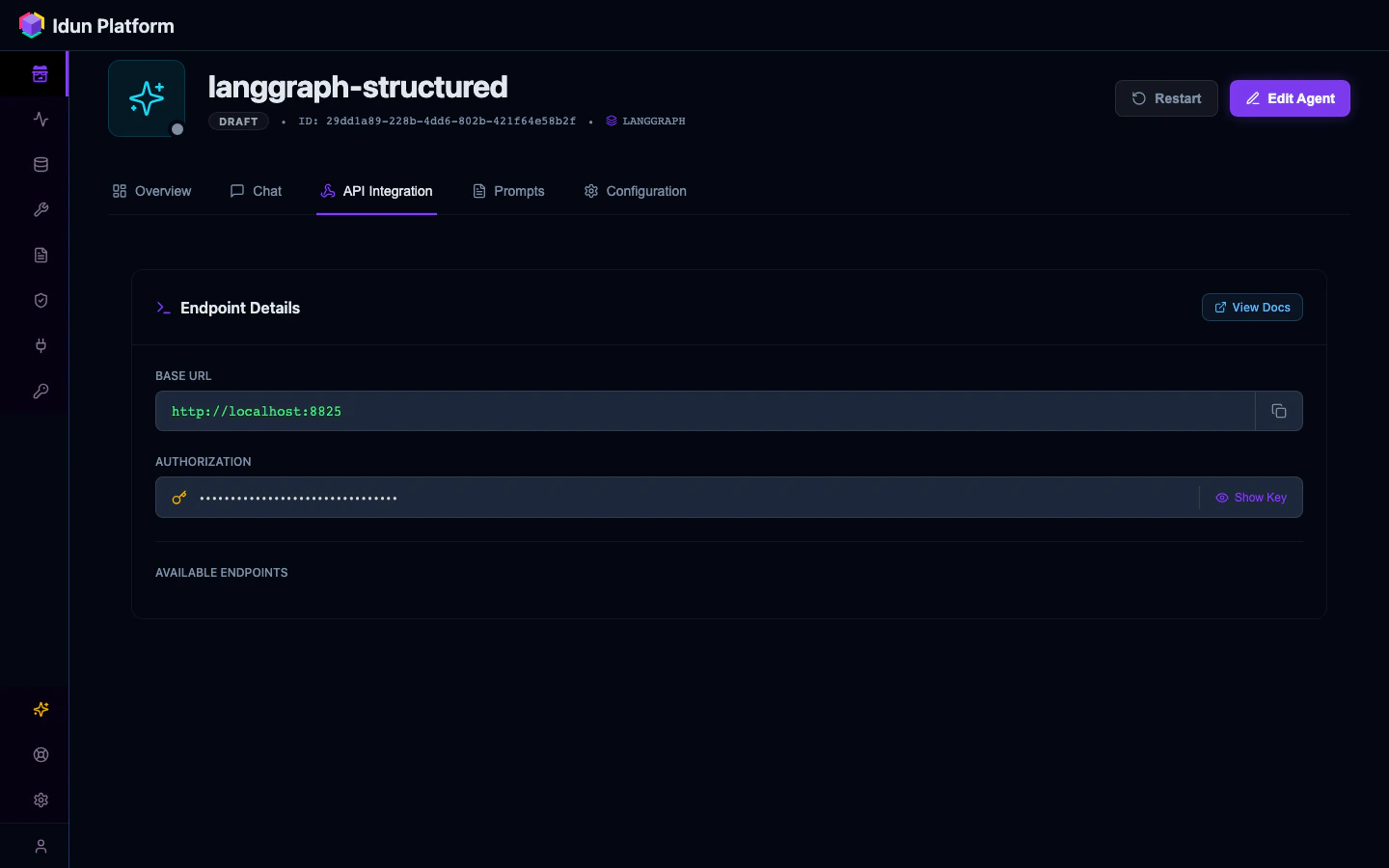
Add resources
From the agent’s Overview tab, you’ll see buttons to add guardrails, observability, memory, and MCP servers. Each links to the corresponding resource catalog page where you create a config and attach it to the agent.The workflow:
- Click Add guardrails (or observability, memory, etc.)
- Create or select a resource config on the catalog page
- Attach it to your agent
- Return to the agent detail page and click Restart in the header
Next steps
Your agent is enrolled and responding to messages. Pick what to configure next.Guardrails
Add PII detection, topic restriction, toxicity filtering, and ban lists.
Observability
Send traces to Langfuse, Phoenix, LangSmith, or GCP.
Memory
Persist conversation state across sessions with checkpoint backends.
Tool governance
Manage MCP servers and control which tools your agents can access.